
[ad_1]
We’ve all been there–you get an alert, or a phone call, or an alarm goes off–but your hands are full. Maybe you’re standing on the bus holding on. Maybe you’re cooking and your hands are a mess. You got an Apple Watch to do useful stuff during those times when you can’t just use your iPhone, but there are still times when you can’t really use your Watch, either.
A new “Double Tap” gesture, exclusive to Apple Watch Series 9 and Ultra 2 or later (it requires the S9 chip and its new sensors), allows you to perform some basic functions by brining your forefinger and thumb together in a pinching gesture twice rapidly. It was first enabled in watchOS 10.1, which arrived about a month after watchOS 10 debuted.
It works a little differently than the current accessibility options available to all Apple Watch users, and in our testing, is a bit more reliable. If you enable Double Tap on your Apple Watch, you’ll have to disable some of those accessibility settings as they will interfere. Here’s what Double Tap can do and how to set it up.
What Double Tap does
When you’re looking at your watch face, Double Tap will bring up your “smart stack” of cards. Performing the gesture again will either advance through the cards or select the current card, depending on the choice you make in Settings.
Foundry
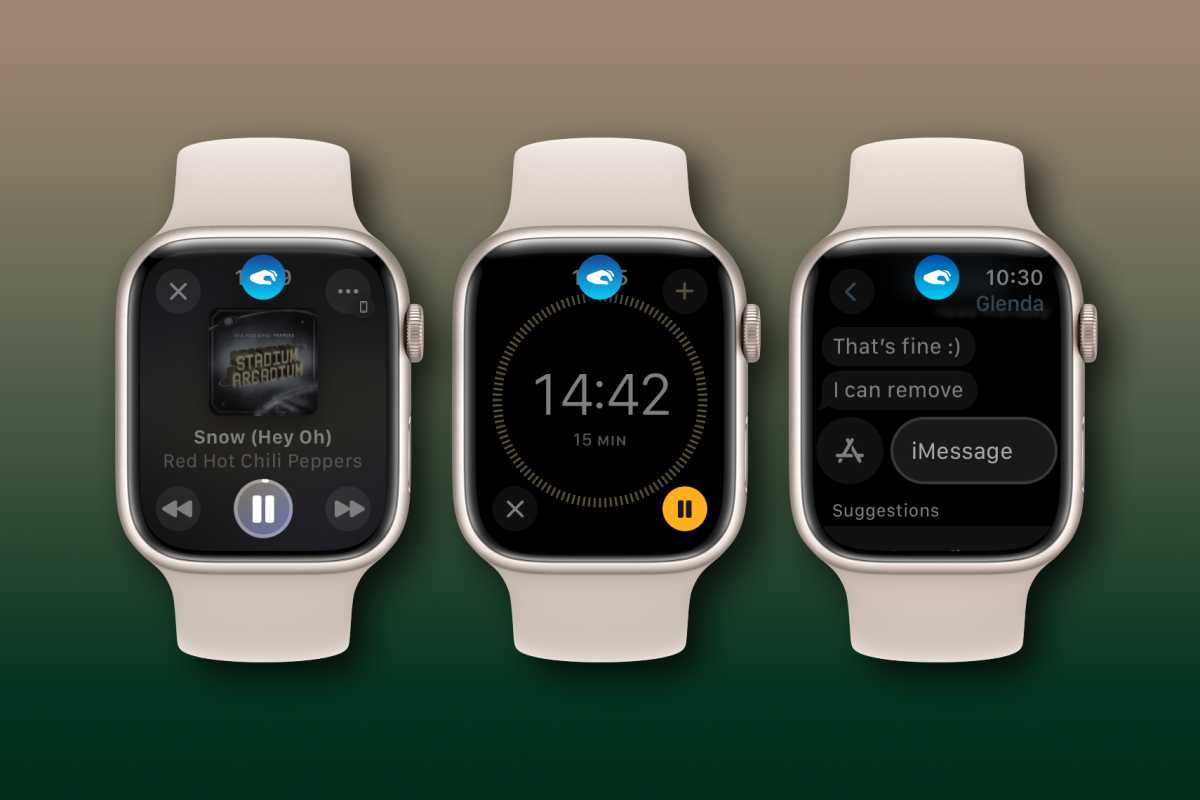
In just about every app, the Double Tap gesture is just like tapping on the primary button. If an alarm is going off, it’s like tapping Snooze. If you’re running a timer, it pauses and resumes it. If you’re using the camera remote, it triggers the shutter (a very handy way to get group photos!). When reading a message in Messages, it opens up a reply (which usually defaults to voice dictation to type).
One notable exception is media playback in apps like Music or Podcasts. By default the primary action is to play or pause, but you can change the Double Tap gesture to skip instead, if you want.
Many apps do not have a primary button defined, so if you perform the Double Tap gesture you’ll see the little icon appear at the top of your screen, shake with haptic feedback, and disappear.
How to enable Double Tap and change settings
- Time to complete: 2 minutes
Tools required: none Materials required: Apple Watch series 9 / Ultra 2 or later, watchOS 10.1 Cost: 0
Adjust Settings on Apple Watch
Foundry
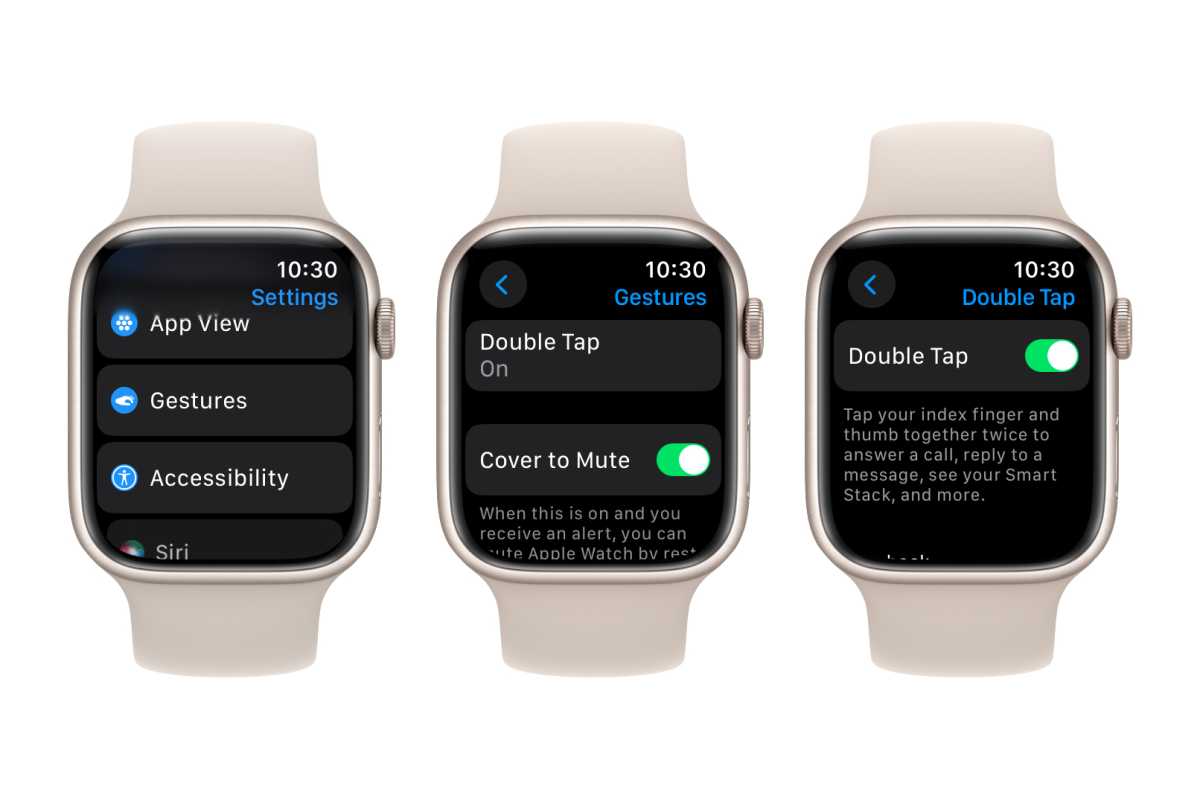
To change Double Tap settings on your Apple Watch:
- Open Settings.
- Tap Gestures.
- Tap Double Tap On/Off.
In this menu you can toggle Double Tap but scroll down to find options to change the media playback between Play/Pause and Skip, or the Smart Stack option between Advance and Select.
Adjust Settings with the Watch app on iPhone
Foundry
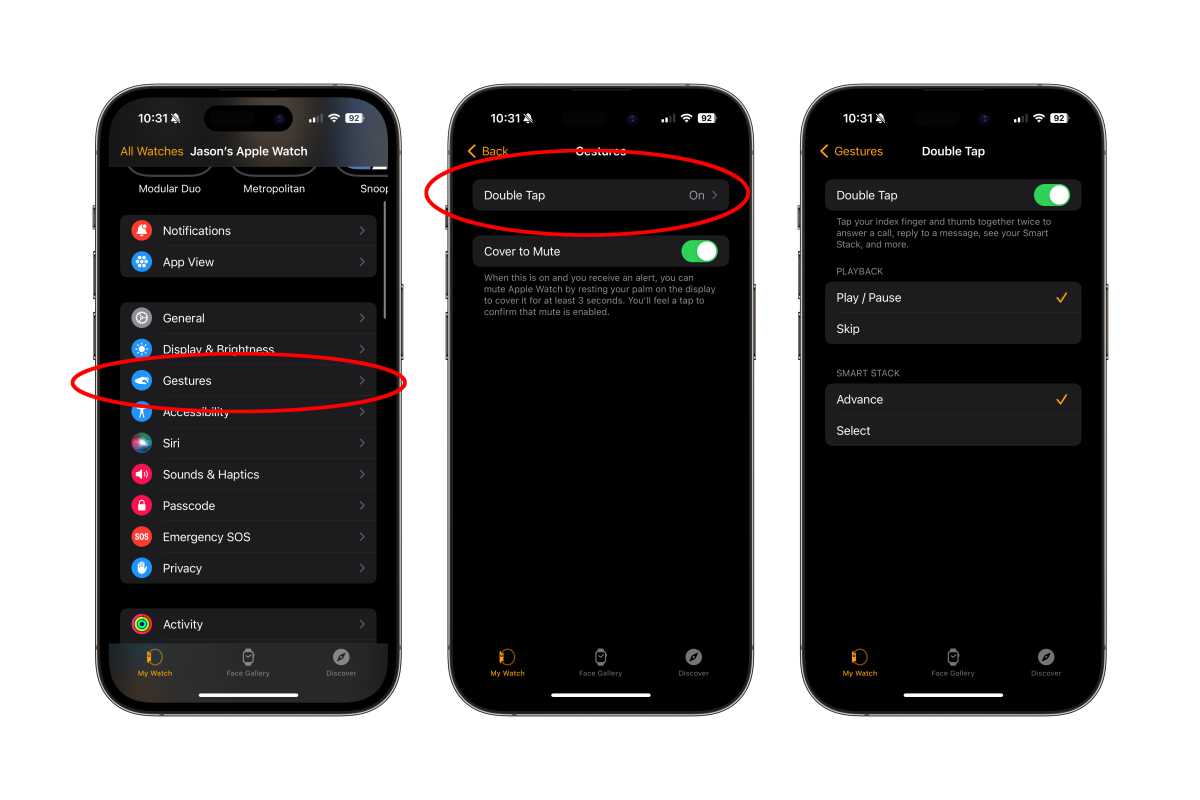
To change Double Tap settings on the Watch app on your iPhone:
- Open the Watch app.
- Tap Gestures.
- Tap Double Tap On/Off.
In this menu you can toggle Double Tap as well as change media playback between Play/Pause and Skip, or the Smart Stack option between Advance and Select.
[ad_2]
Source link

